WORDPRESS BASICS / AI CONNECTION
What is an API key? Connect AI to your WordPress plugin
An API key connects your WordPress plugin to the AI service you choose. You create the key in your own provider account, then enter it in the plugin’s settings.
You do not need to write code for this connection. The provider is the company that runs the AI service; the model is the AI option you choose inside that service.
A private access pass for your website
An API key is a secret credential. It allows the plugin to send authorised requests using your provider account. It is not your WordPress password and should never appear in an article or on a public page.
How the connection works
- You choose a provider offered by your installed plugin.
- You create an API key in that provider’s official account dashboard.
- You enter it in the matching provider field in the WordPress plugin settings.
- You choose a model and review the provider’s usage and billing controls before generating.
Where to get your API key
Below are setup guides for OpenAI, Grok, Claude and Gemini. Connect the provider you actually plan to use, and check that it appears in your installed plugin. The available models and functions can differ by provider.
Real form screenshots captured on 6 October 2026. Personal account details and secret keys are excluded. Current forms may look different; the official guides below take priority.
Grok · xAI
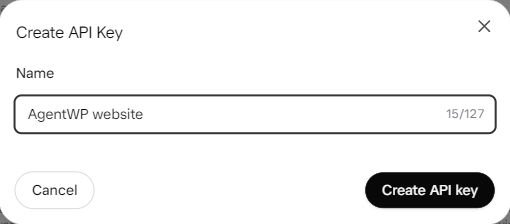
The form asks for a name. Account registration and billing are separate steps.
Open the official API-key dashboard ↗Show connection steps
- Open the xAI Console and go to API Keys.
- Create a key, give it a recognisable name and store it securely.
- Review credits and pricing, then enter the key in the Grok provider field in the plugin.
OpenAI
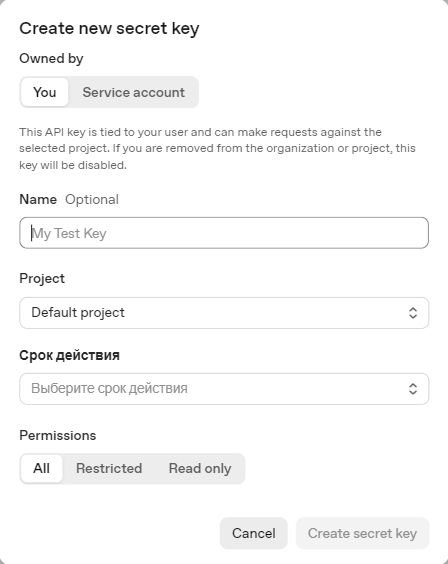
Use the OpenAI API platform. This is a separate interface from the ChatGPT conversation screen.
Open the official API-key dashboard ↗Show connection steps
- Open API keys in the OpenAI API platform.
- Create a secret key for the intended project; review the permissions offered by the form.
- Store the key securely, review API billing, then enter it in the OpenAI provider field in the plugin.
Claude · Anthropic
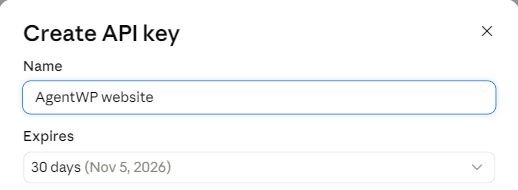
Form excerpt showing name and expiry; account-specific fields are excluded.
Open the official API-key dashboard ↗Show connection steps
- Open Settings → API keys in the Claude Console and select Create key.
- Name the key and review its expiry, linked account and workspace scope.
- Store it securely, review API billing, then enter it in the Claude/Anthropic provider field in the plugin.
Gemini · Google
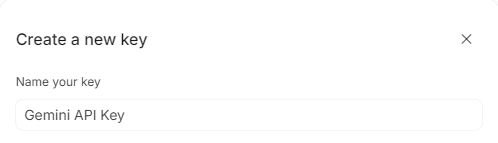
Form excerpt showing the key name; the project selector and account details are excluded.
Open the official API-key dashboard ↗Show connection steps
- Open API keys in Google AI Studio.
- Use the appropriate Google Cloud project. Import an existing project if it is not yet listed.
- Create the key, review project billing and limits, then enter it in the Gemini provider field in the plugin.
Keep the key to yourself
Paste your key only into the intended private settings field. Do not send it in a support message or share it in a screenshot. If it becomes exposed, revoke it through the provider and create a replacement.